
Overview
I’ve long struggled with adding manual transactions for several reasons:
- Downloading transactions for my HSA is so unreliable it’s not worth the effort to even try. I just treat it as a manual account.
- I track my grocery budget daily so waiting for the latest transaction to post and then download is too slow
- I track my gas fill-ups separately per car, but if I don’t write down which car I filled up and when, I usually forget by the time the transaction downloads into Tiller
- My main bank downloads use the posting date instead of the transaction date, which throws off my reporting when I’m trying to figure out how much I spent on a trip (the posting date can be anywhere from 1-5 days after the transaction happened)
While doing research into something else Google Sheets-related, I came across the idea of using a Google Form to import data into a Sheet, and I eventually developed a method to add manual transactions on demand from anywhere when I’m thinking about them.
The data flow works like this:
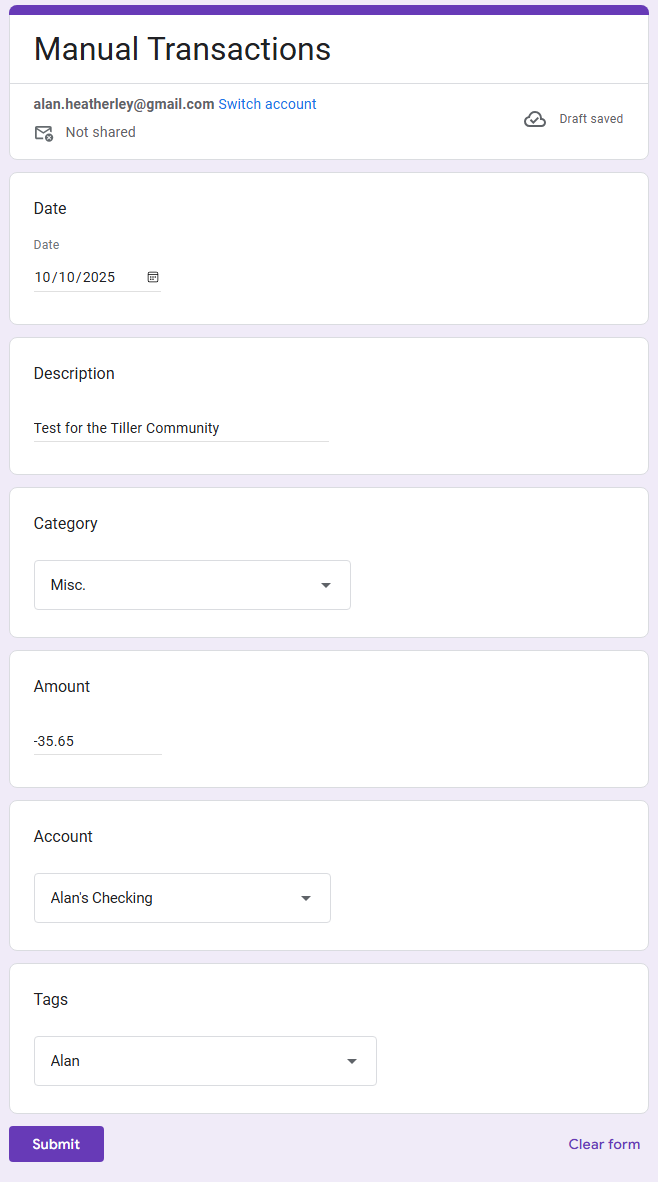
- Using saved URL on my phone, open a Form. Enter date, description, amount, account and tags (optional), then Submit Form (I also created an iPhone Shortcut to streamline filling in the Form, but that’s not necessary for this to work)
- The Form pushes the data into a table in my Tiller Sheet
- An event trigger then schedules the import to the Transactions table for 5 minutes later (this is so that if I have multiple manual transactions to enter, the import process only runs once and adds them all. Every new Form entry resets the timer to 5 minutes later)
- When the timer finishes counting down, a script runs that takes the Form data, looks up the account details (account number, institution), calculates date fields (month, week), gives it a manual transaction ID, and adds the metadata that indicates this is a manual transaction
I used to have to spend a few minutes each night to enter my transactions in Tiller, but now I can go days between having to open it. Another benefit is that using the Tiller extension to enter the manual transactions is pretty unpredictable. It can take anywhere from 3-90 seconds to enter a single transaction, which is killer when I have 5+ to enter. Now I enter them as needed throughout the day (usually no more than 10 secs per transaction), and by the time I get back to my Tiller sheet, they’re imported and ready.
Installation
- Create a Form to capture the data. If you’ve never worked with Google Forms before, here’s a tutorial on getting started: Create your first form in Google Forms - Google Workspace Learning Center
- Add the following fields:
- Date (date field)
- Description (short answer)
- Category (dropdown) - you don’t need to add ALL your categories, or the list will get too overwhelming. Just focus on the minimum needed to be useful.
- Amount (short answer, with Response Validation set to “number”)
- Account (dropdown) - same as Category, keep this short
- Tags (dropdown or short answer)
- Publish the Form (upper right of screen)
- Go to the Responses tab and select the 3 dots in the upper right. Choose “Select destination for responses”
- Select existing spreadsheet
- Select your Tiller sheet
- To test the Form, click the “Copy Responder Link” in the upper right (looks like a chain link), then open that URL in a separate browser window
- Fill in the form and submit it (the first time you do this is will probably ask for permission to access the spreadsheet)
- Open your Tiller spreadsheet, there should be a new tab with the Form results (rename the sheet and table name if desired)
- Add the following fields:
- Install the scripts
- If you’ve never used a script with Google Sheets, follow these steps to get started: Creating your first Apps Script
- Create a new script file and paste in this script:
-
function scheduleAppendManualTransactions() {
  // Delete any existing delayed triggers to avoid duplicates
  const triggers = ScriptApp.getProjectTriggers();
  triggers.forEach(trigger => {
    if (trigger.getHandlerFunction() === "appendManualTransactions") {
      ScriptApp.deleteTrigger(trigger);
    }
  });

  // Create a new time-driven trigger to run in 5 minutes
  ScriptApp.newTrigger("appendManualTransactions")
    .timeBased()
    .after(5 * 60 * 1000) // 5 minutes in milliseconds
    .create();

  Logger.log(`appendManualTransactions trigger scheduled at: ${new Date(Date.now() + 5 * 60 * 1000)}`);
}

/*===============================================================================================
=================================================================================================
===============================================================================================*/

function appendManualTransactions() {
  // Access the active spreadsheet and relevant sheets
  const ss = SpreadsheetApp.getActiveSpreadsheet();
  const manualSheet = ss.getSheetByName("Manual Transactions"); //Name of the sheet with the Manual Transactions from the Form
  const transactionSheet = ss.getSheetByName("Transactions");   //Name of the Transactions sheet

  // Get all data from the Manual Transactions sheet
  const manualData = manualSheet.getDataRange().getValues();
  const headers = manualData[0]; // First row contains headers

  // Ensure "Processed" column exists; add it if missing
  let processedColIndex = headers.indexOf("Processed");
  if (processedColIndex === -1) {
    processedColIndex = headers.length;
    manualSheet.getRange(1, processedColIndex + 1).setValue("Processed");
    Logger.log(`Added "Processed" column at index ${processedColIndex}`);
  }

  // Ensure "Error Log" column exists; add it if missing
  let errorColIndex = headers.indexOf("Error Log");
  if (errorColIndex === -1) {
    errorColIndex = headers.length;
    manualSheet.getRange(1, errorColIndex + 1).setValue("Error Log");
    Logger.log(`Added "Error Log" column at index ${errorColIndex}`);
  }

  // Build a lookup map of account metadata from the Accounts sheet
  const accountMap = getAccountLookupMap();

  // Prepare arrays to store valid transactions and rows to mark as processed
  const output = [];
  const processedRows = [];

  // JSON strings used to flag reconciliation status
  const reconcileYes = '{"manualTransaction":{"reconcile":true,"ignoredIds":[]}}';
  const reconcileNo = '{"manualTransaction":{"reconcile":false,"ignoredIds":[]}}';

  // Loop through each row of manual data (excluding header)
  for (let i = 1; i < manualData.length; i++) {
    const row = manualData[i];
    const processedFlag = row[processedColIndex]; // Check if already processed

    if (!processedFlag) {
      // Destructure expected fields from the row
      const [timestamp, rawDate, description, category, amount, account, tags] = row;

      const missingFields = [];

      // Validate required fields
      const parsedDate = new Date(rawDate);
      if (!(parsedDate instanceof Date && !isNaN(parsedDate))) missingFields.push("Date");
      if (!description) missingFields.push("Description");
      if (!category) missingFields.push("Category");
      if (amount === "" || amount === null || isNaN(amount)) missingFields.push("Amount");
      if (!account) missingFields.push("Account");

      // If any required fields are missing, log error and skip row
      if (missingFields.length > 0) {
        const errorMessage = `Missing ${missingFields.join(", ")}`;
        manualSheet.getRange(i + 1, errorColIndex + 1).setValue(errorMessage);
        Logger.log(`Row ${i + 1} skipped: ${errorMessage}`);
        continue;
      }

      // Lookup account metadata
      const accountInfo = accountMap[account] || {};

      // Calculate derived fields
      const month = getFirstDayOfMonth(parsedDate);
      const week = getPreviousSunday(parsedDate);
      const reconcile = account === "Health Savings Account" ? reconcileNo : reconcileYes;

      // Get headers from Transactions sheet
      const transactionHeaders = transactionSheet.getRange(1, 1, 1, transactionSheet.getLastColumn()).getValues()[0];

      // Create a map of field values keyed by header name
      const transactionFields = {
        "Date": parsedDate,
        "Description": description,
        "Category": category,
        "Amount": amount,
        "Account": account,
        "Tags": tags,
        "Account #": accountInfo.accountNum || "",
        "Institution": accountInfo.institution || "",
        "Month": month,
        "Week": week,
        "Transaction ID": "manual:" + Utilities.getUuid(),
        "Account ID": accountInfo.accountId || "",
        "Full Description": description,
        "Date Added": timestamp,
        "Metadata": reconcile
      };

      // Build transaction row dynamically based on header order
      const transactionRow = transactionHeaders.map(header => transactionFields[header] ?? "");
            output.push(transactionRow);
            processedRows.push(i + 1); // Track row index for marking as processed
            Logger.log(`Row ${i + 1} prepared for append`);
          }
  }

  // If there are valid transactions to append
  if (output.length > 0) {
    const lastRow = transactionSheet.getLastRow();
    transactionSheet.getRange(lastRow + 1, 1, output.length, output[0].length).setValues(output);
    Logger.log(`Appended ${output.length} rows to Transactions sheet. Details:`);

    // Log each appended row for debugging
    output.forEach((row, index) => {
      Logger.log(`Row ${index + 1}: ${JSON.stringify(row)}`);
    });

    // Sort the Transactions sheet by Date (desc), Account (asc), Amount (asc)
    const transactionHeaders = transactionSheet.getRange(1, 1, 1, transactionSheet.getLastColumn()).getValues()[0];
    const sortConfig = [
      { key: "Date", ascending: false },
      { key: "Account", ascending: true },
      { key: "Amount", ascending: true },
      { key: "Description", ascending: true }
    ];
    const sortColumns = sortConfig.map(({ key, ascending }) => ({
      column: transactionHeaders.indexOf(key) + 1,
      ascending
    }));

    const numRows = transactionSheet.getLastRow() - 1;
    const numCols = transactionSheet.getLastColumn();
    transactionSheet.getRange(2, 1, numRows, numCols).sort(sortColumns);
    Logger.log(`Sorted Transactions sheet by ${sortConfig.map(c => c.key).join(", ")}`);

    // Mark processed rows with current timestamp
    const timestampValues = processedRows.map(() => [new Date()]);
    manualSheet.getRange(processedRows[0], processedColIndex + 1, processedRows.length, 1).setValues(timestampValues);
    Logger.log(`Marked ${processedRows.length} rows as processed`);
  } else {
    Logger.log("No valid rows to append");
  }
}

/*===============================================================================================
=================================================================================================
===============================================================================================*/

function getAccountLookupMap() {
  const ss = SpreadsheetApp.getActiveSpreadsheet();
  const accountSheet = ss.getSheetByName("Accounts"); // Name of the Accounts sheet
  const accountData = accountSheet.getDataRange().getValues();
  const headers = accountData[0];

  // Map header names to column indices
  const headerMap = headers.reduce((map, header, i) => {
    if (header === "Account") map.accountCols.push(i); // Track multiple "Account" columns
    else map[header] = i;
    return map;
  }, { accountCols: [] });

  // Use second "Account" column for lookup
  const accountColIndex = headerMap.accountCols[1];
  const {
    "Unique Account Identifier": uniqueIdColIndex,
    "Account Id": accountIdColIndex,
    "Account #": accountNumColIndex,
    "Institution": institutionColIndex
  } = headerMap;

  // Validate required columns exist
  if ([accountColIndex, uniqueIdColIndex, accountIdColIndex, accountNumColIndex, institutionColIndex].includes(undefined)) {
    throw new Error("Missing required columns in Accounts sheet");
  }

  // Build account metadata map
  const accountMap = {};
  for (let i = 1; i < accountData.length; i++) {
    const accountName = accountData[i][accountColIndex];
    accountMap[accountName] = {
      uniqueId: accountData[i][uniqueIdColIndex],
      accountId: accountData[i][accountIdColIndex],
      accountNum: accountData[i][accountNumColIndex],
      institution: accountData[i][institutionColIndex]
    };
  }

  Logger.log(`Built account map with ${Object.keys(accountMap).length} entries`);
  return accountMap;
}

/*===============================================================================================
=================================================================================================
===============================================================================================*/

// Returns the first day of the month for a given date
function getFirstDayOfMonth(date) {
  return new Date(date.getFullYear(), date.getMonth(), 1);
}

/*===============================================================================================
=================================================================================================
===============================================================================================*/

// Returns the previous Sunday for a given date
function getPreviousSunday(date) {
  const offset = date.getDay(); // 0 = Sunday
  const sunday = new Date(date);
  sunday.setDate(date.getDate() - offset);
  return sunday;
}
-
- Save the script
- Add the trigger
- Move to the Triggers section of Apps Script (on the left side of the screen, looks like an alarm clock)
- Click Add Trigger (blue button in the bottom right)
- Fill it in like this:
-
- If you don’t want to schedule the append function to run later, and instead want it to run immediately every time you add a transaction, choose “appendManualTransactions” in the first box
- Click Save


That’s it for installation of the project.
Configuration
There are a few spots for customization:
- Line 13: set the delay for the append script to run. Default is 5 minutes
-
.after(5 * 60 * 1000) // 5 minutes in milliseconds
-
- Lines 26 & 27: the names of the sheet the Form is storing its data, and the Transactions sheet
-
const manualSheet = ss.getSheetByName("Manual Transactions"); //Name of the sheet with the Manual Transactions from the Form
const transactionSheet = ss.getSheetByName("Transactions");   //Name of the Transactions sheet
-
- Line 92: if you have an account that you DON’T want to be included in the reconciliation process, include it here
-
const reconcile = account === "Health Savings Account" ? reconcileNo : reconcileYes;
-
- Lines 98 - 114: if you modified any of the core Transactions sheet columns, update these to match
-
const transactionFields = {
        "Date": parsedDate,
        "Description": description,
        "Category": category,
        "Amount": amount,
        "Account": account,
        "Tags": tags,
        "Account #": accountInfo.accountNum || "",
        "Institution": accountInfo.institution || "",
        "Month": month,
        "Week": week,
        "Transaction ID": "manual:" + Utilities.getUuid(),
        "Account ID": accountInfo.accountId || "",
        "Full Description": description,
        "Date Added": timestamp,
        "Metadata": reconcile
      };
-
- Lines 137 - 142: this script sorts the Transactions sheet to bring the new manual transactions into the table. Modify the sort order if you like.
-
const sortConfig = [
      { key: "Date", ascending: false },
      { key: "Account", ascending: true },
      { key: "Amount", ascending: true },
      { key: "Description", ascending: true }
    ];
-
- Line 168: name of the core Accounts sheet
-
const accountSheet = ss.getSheetByName("Accounts"); // Name of the Accounts sheet
-
- Lines 181 - 186: the names of the core Accounts columns
-
const {
    "Unique Account Identifier": uniqueIdColIndex,
    "Account Id": accountIdColIndex,
    "Account #": accountNumColIndex,
    "Institution": institutionColIndex
  } = headerMap;
-
Usage
If everything is working, all you need to do is open the Form on your desktop or phone, and fill in the questions and hit Submit:
The Form data will appear in the Manual Transactions table:

Five minutes later it should appear in the Transactions table:

Streamlining Filling in the Form
I did this project specifically because I wanted to enter health-related transactions for my HSA, and to record grocery and gas expenses. Thankfully, Google Forms allows you to create pre-filled URLs for your Form, so I saved shortcuts for each of those scenarios.
I also used the iPhone Shortcuts app to create shortcuts that guide me through each of those scenarios, presenting a limited number of categories, accounts, and tags depending on which branch I chose. It’s so smooth and easy to enter the details (maybe 10 seconds per transaction) but creating the shortcuts was unbelievably tedious. Given the power available in this app, I can’t believe there isn’t a better way to build these. This link (Sending Data to Google Sheets Using Apple Shortcuts | thiagoalves.ai) is a great guide to setting it up, however.


