

I use both Filter and Query functions regularly but have been using Query more and more due to a few reasons; some of them mentioned here- Use Query Function as an Alternative to Filter Function.
If you want a good Query tutorial- Learn Google Sheets Query Function: Step-by-Step Guide.
As I become more familiar with Google Sheets, I found a great advantage of using Query when you have an unknown number of values to filter a column on.
A real scenario is that I want to exclude certain Transaction Categories or Category Groups from my data. I have this situation in multiple of my sheets…

Using this specific scenario, you could have between 0 and 5 Groups you want to exclude. To do this via Filter, I was using a nested If() statement for each option you want to exclude and you had to have successive values with no blanks between them or it would return an error. I started with something like this…
= Filter ({range}, If(1st choice is not chosen), {don’t filter anything},
if(2nd choice is not chosen), {filter on 1 choice only},
if(3rd choice is not chosen, {filter on 1st and 2nd choice},
…
And so on. You could also create a table with a separate column indicating if that Category or Group should be included….
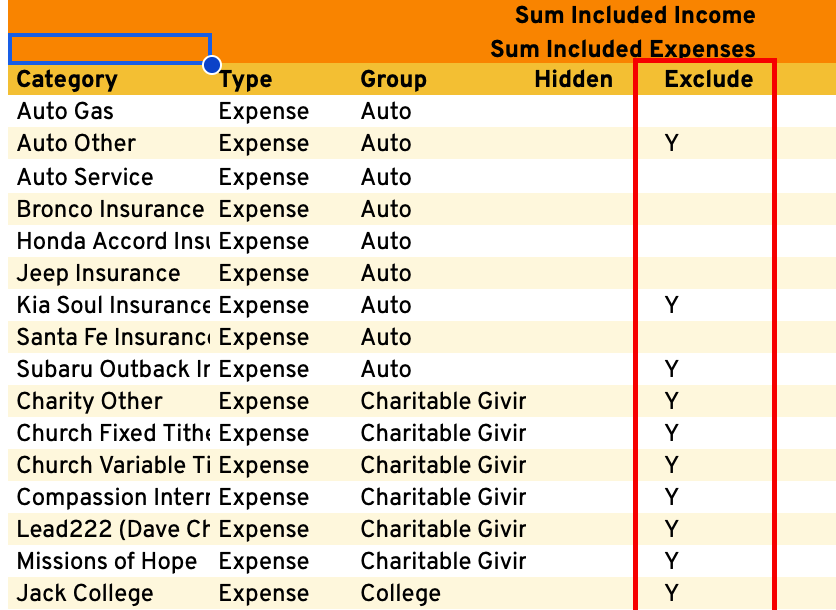
Then Filter on this new table; but that takes up many more cells which is at a premium in Tiller as you download more data and have more add-ins.
An alternative is using Textjoin with Query. It is very easy and efficient. In Query, the “Select and “Where”” portion of the query is simply a text string. This allows you to use Textjoin inside of the “Where” part of Query to include or exclude any number of values for a specific column.
For example, let’s say you want to filter your Transactions on up to 5 Categories. The below is in cells C1:C5.

In this example, you could choose anywhere between 0 and 5 categories and you could have values in any rows, not always successive.
Assuming category is in Column 4 in your Query, this is what you want the “Where” part of Query to show…
Where Col4 = 'Investment Cash Flow' OR Col4 = 'Clothing' OR Col4 = 'Kia Soul Insurance’
You can accomplish this with the following…
=" Where Col4 "&if(counta(C1:C5)=0," is not null"," = '"&TEXTJOIN("' OR Col4 = '",TRUE,C1:C5)&"'")
The TRUE in Textjoin ignores blank cells and Textjoin combines the categories you chose into the correct string for Query. The if(counta() is used in case no categories are chosen.
You can exclude these categories by replacing ‘ OR Col4 = ‘ with ‘OR Col4 <> ‘.
You could also have an entire column of values and use checkboxes to choose which ones to include (or exclude). Assuming the checkboxes are in column D for this example, you would include a Filter to filter on those values you chose with the checkbox.
=" Where Col4 "&if(countifs(C1:C5,"<>",D1:D5,TRUE)=0," is not null"," = '"&TEXTJOIN("' OR Col4 = '",TRUE,filter(C1:C5,D1:D5))&"'")
The if(countifs() function handles scenarios where no categories are listed in column C or chosen in column D.
This post talks only about using Query to filter, but you can also Sum, Count, Max, Min, or any other Query operator on the data.
I believe this is very easy way to filter a table (balances or transactions or ??) on an unknown number of values in a column.

 . I got lost with the TEXTJOIN but I concede spending a bit more time on it would help. I also currently don’t have a use case for this but noted for future reference!